Device selection
G-Code Creation: [Text] [Barcode] [Image] [Simple shapes] [Grafic tablet] [Jog path] [Extensions]
Workpiece: [Probing] [Height map]
Machine: [grbl setup] [Pen changer setup] [Coordinate systems] | [Laser tools] [Camera] [DIY Control] [Process automation]
back to [Menu]
Overview to version 1.8.0.0
Laser
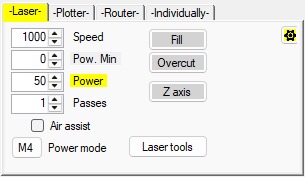
The "Laser" tab needs to be selected to generate G-Code specifically for laser-cutter or -engraver.
Do the basic settings for
- Speed - speed of motion in X and Y direction
- Power - the desired S-value. Hover on "Power" to see the possible range, if a controller is connected.
- Passes - how often should the laser trace a contour
Optional the path can be modified by
- Hatch fill of closed shapes
- Overcut on closed shapes
- Z-axis

Via the setup  , the displayed tool-path-width (when "Apply tool list" is active) and the Air assistant commands can be set:
On the associated device control tab,
- the laser can be switched on with low energy (adjustable via the setup)
- a pilot laser can be switched on (set commands via the setup)
- the air assist can be switched on (set commands via the setup)

Plotter
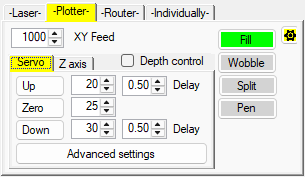
The "Plotter" tab provides options for use of a RC-servo or Z-axis to raise or lower a pen.
Note: if a Z-axis is used for pen -up/-down, a laser can be controlled for a single tool in the tool list, instead of the Z-axis. Switch to the laser-tab to change the view of the tool list for the laser parameters.
Optional the path can be modified by
- Hatch fill of closed shapes
- Wobble to make straight lines more hand drawn
- Split path to insert a subroutine e.g. to pick up new color with a brush
- Pen change

Via the setup , the displayed pen-width (when "Apply tool list" is active) can be set:
On the associated device control tab,
- the pen height can be controlled
- a dot (pen down/up) can be drawn

Router
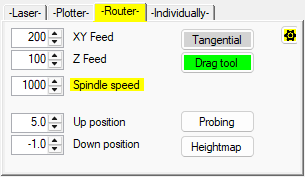
The "Router" tab needs to be selected to generate GCode only for a Z-axis with some options.
Optional the path can be modified by
- Add a Tangential axis command
- Modify the path for a drag knife

Via the setup , the displayed tool-path-width (when "Apply tool list" is active) can be set:
On the associated device control tab,
- the spindle can be switched on
- the coolant can be switched on
- the mist can be switched on

Option Fill
The fill option can also be set for each tool individually.
Option Overcut
Option Z-axis
Option Wobble
Option Split
Option Pen change